How Do I Factory Reset My Google Home Mini? If you're planning to sell, give away, or troubleshoot your Google Home Mini, performing a factory reset is a crucial step. A factory reset restores the device to its original settings, wiping all your personal data and preferences.
Whether you're experiencing technical issues or simply want to start fresh, resetting your Google Home Mini is a straightforward process. In this blog, we’ll walk you through the steps to factory reset your Google Home Mini.
Why Factory Reset Your Google Home Mini?
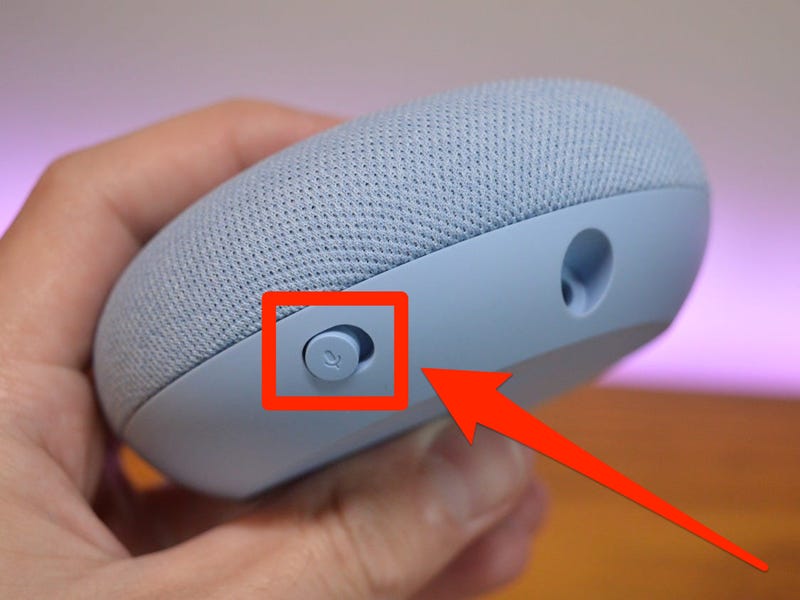
Before diving into the steps, let’s quickly go over why you might need to reset your device:
1: Selling or Giving Away: If you’re passing your Google Home Mini to someone else, a factory reset ensures your personal information is removed.
2: Technical Issues: If your device is unresponsive, glitchy, or not connecting properly, a reset can often resolve these issues.
3: Starting Fresh: If you want to reconfigure your device from scratch, a factory reset is the way to go.
How Do I Factory Reset My Google Home Mini?
There are two main methods to reset your Google Home Mini: using the physical button on the device or through the Google Home app. Let’s explore both options.
Method 1: Using the Physical Reset Button
This is the most common and straightforward way to reset your Google Home Mini. Here’s how to do it:
Read Also: Why Does My Google Nest Camera Audio Keep Turning Off?
1: Locate the Reset Button: On the bottom of your Google Home Mini, you’ll find a small circular button labeled “Factory Reset.”
2: Press and Hold the Button: Use a paperclip or a similar tool to press and hold the button for about 15 seconds.
3: Wait for the Confirmation: The device will make a sound, and the lights will flash to indicate that the reset process has started.
4: Complete the Reset: Once the lights stop flashing and the device reboots, your Google Home Mini will be restored to its factory settings.
Method 2: Using the Google Home App
If you prefer to reset your device through the app, follow these steps:
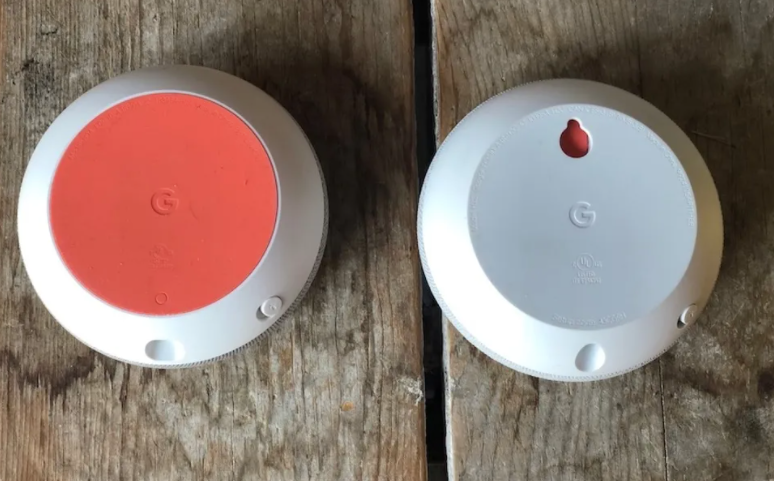
1: Open the Google Home App: Launch the app on your smartphone or tablet. || 2: Select Your Device: Tap on the Google Home Mini you want to reset. || 3: Go to Settings: Tap the gear icon in the top-right corner to access the device settings.
4: Find the Reset Option: Scroll down and select “More” (the three vertical dots), then choose “Factory Reset.” || 5: Confirm the Reset: Follow the on-screen prompts to confirm the reset. The app will guide you through the process.
What Happens After a Factory Reset?
Once the reset is complete, your Google Home Mini will be like new. Here’s what you can expect:
Read Also: What Time Does The New Nyt Mini Crossword Come Out?
All your personal data, including Wi-Fi credentials, linked accounts, and preferences, will be erased. || The device will no longer respond to your voice commands until it’s set up again. You’ll need to go through the initial setup process if you want to use the device again.
Tips for a Smooth Reset
Ensure Power Supply: Make sure your Google Home Mini is plugged in during the reset process to avoid interruptions. || Check Your Wi-Fi: After resetting, you’ll need to reconnect the device to your Wi-Fi network, so have your credentials handy. Update the App: Ensure your Google Home app is updated to the latest version for a seamless experience.
Final Thoughts
How Do I Factory Reset My Google Home Mini? Factory resetting your Google Home Mini is a simple process that can help you troubleshoot issues, prepare the device for a new owner, or start fresh with a clean slate. Whether you use the physical button or the app.
The steps are quick and easy to follow. Just remember to back up any important data or preferences before resetting, as the process is irreversible. If you found this guide helpful, feel free to share it with others who might need it. And if you have any questions or additional tips, let us know in the comments below!
Read Also : Schema Markup, how to generate perfect Schema, how to fix errors?
 Luna Ella
How Do I Factory Reset My Google Home Mini? If you're planning to sell, give away, or troubleshoot your Google Home Mini, performing a factory reset is a crucial step. A factory reset restores the device to its original settings, wiping all your personal data and preferences.
Whether you're experiencing technical issues or simply want to start fresh, resetting your Google Home Mini is a straightforward process. In this blog, we’ll walk you through the steps to factory reset your Google Home Mini.
Why Factory Reset Your Google Home Mini?
Before diving into the steps, let’s quickly go over why you might need to reset your device:
1: Selling or Giving Away: If you’re passing your Google Home Mini to someone else, a factory reset ensures your personal information is removed.
2: Technical Issues: If your device is unresponsive, glitchy, or not connecting properly, a reset can often resolve these issues.
3: Starting Fresh: If you want to reconfigure your device from scratch, a factory reset is the way to go.
How Do I Factory Reset My Google Home Mini?
There are two main methods to reset your Google Home Mini: using the physical button on the device or through the Google Home app. Let’s explore both options.
Method 1: Using the Physical Reset Button
This is the most common and straightforward way to reset your Google Home Mini. Here’s how to do it:
Read Also: Why Does My Google Nest Camera Audio Keep Turning Off?
1: Locate the Reset Button: On the bottom of your Google Home Mini, you’ll find a small circular button labeled “Factory Reset.”
2: Press and Hold the Button: Use a paperclip or a similar tool to press and hold the button for about 15 seconds.
3: Wait for the Confirmation: The device will make a sound, and the lights will flash to indicate that the reset process has started.
4: Complete the Reset: Once the lights stop flashing and the device reboots, your Google Home Mini will be restored to its factory settings.
Method 2: Using the Google Home App
If you prefer to reset your device through the app, follow these steps:
1: Open the Google Home App: Launch the app on your smartphone or tablet. || 2: Select Your Device: Tap on the Google Home Mini you want to reset. || 3: Go to Settings: Tap the gear icon in the top-right corner to access the device settings.
4: Find the Reset Option: Scroll down and select “More” (the three vertical dots), then choose “Factory Reset.” || 5: Confirm the Reset: Follow the on-screen prompts to confirm the reset. The app will guide you through the process.
What Happens After a Factory Reset?
Once the reset is complete, your Google Home Mini will be like new. Here’s what you can expect:
Read Also: What Time Does The New Nyt Mini Crossword Come Out?
All your personal data, including Wi-Fi credentials, linked accounts, and preferences, will be erased. || The device will no longer respond to your voice commands until it’s set up again. You’ll need to go through the initial setup process if you want to use the device again.
Tips for a Smooth Reset
Ensure Power Supply: Make sure your Google Home Mini is plugged in during the reset process to avoid interruptions. || Check Your Wi-Fi: After resetting, you’ll need to reconnect the device to your Wi-Fi network, so have your credentials handy. Update the App: Ensure your Google Home app is updated to the latest version for a seamless experience.
Final Thoughts
How Do I Factory Reset My Google Home Mini? Factory resetting your Google Home Mini is a simple process that can help you troubleshoot issues, prepare the device for a new owner, or start fresh with a clean slate. Whether you use the physical button or the app.
The steps are quick and easy to follow. Just remember to back up any important data or preferences before resetting, as the process is irreversible. If you found this guide helpful, feel free to share it with others who might need it. And if you have any questions or additional tips, let us know in the comments below!
Read Also : Schema Markup, how to generate perfect Schema, how to fix errors?